The plate does not connect
Checked with app version1.0.63· Last updated
The app looks for your plate each time a session starts, so you do not have to connect it beforehand. When the app finds the plate, it weighs you, and the session begins. (The Bluetooth icon at the top of the app connects the plate ahead of time, if you prefer.)
If the screen stays on Looking for your Entralpi, go through these in order.
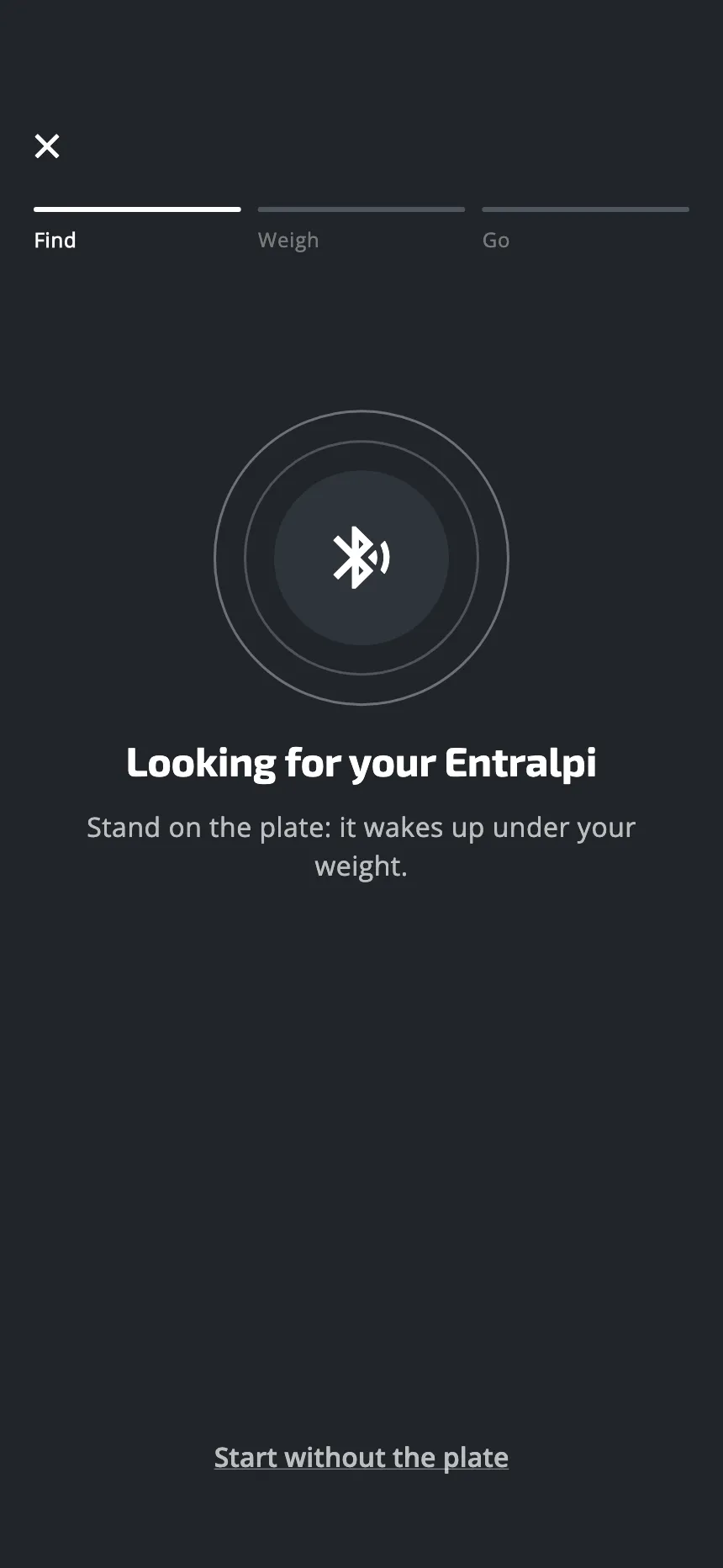
1. Stand on the plate
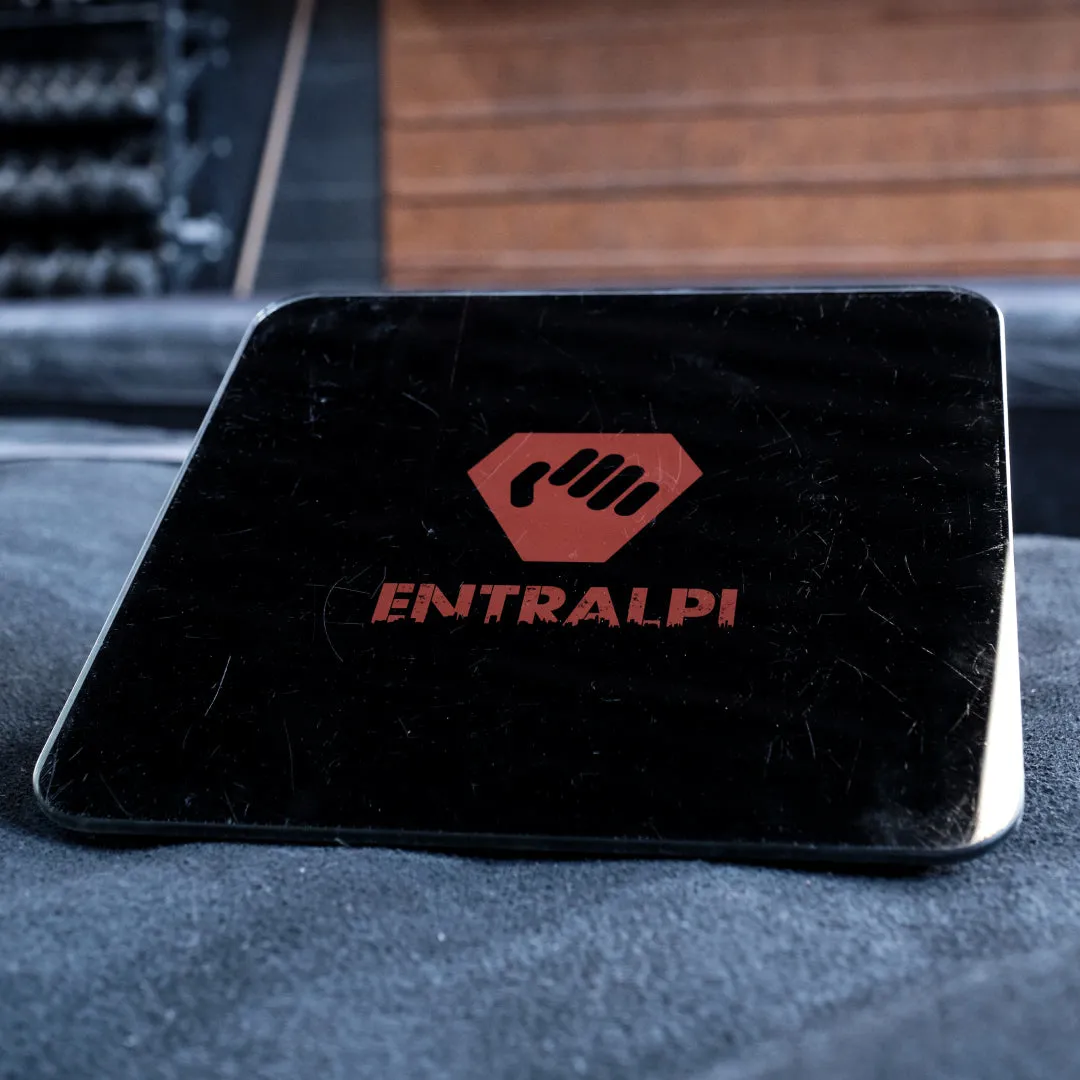
The plate has no power button. It sleeps until it carries your full weight, and the app cannot find a plate that is asleep. Step on with both feet and stay on.
2. Give it a few seconds
When a first search finds nothing, after a few seconds, the title changes to Still looking. The search goes on by itself: there is nothing to tap to keep it going. The screen then lists three things to check: they are steps 1, 3 and 4 here.
3. Do not pair it in your phone’s Bluetooth settings
The plate connects from inside the app only. Do not pair it in your phone’s Bluetooth settings.
4. Change the batteries
The plate runs on 4 AAA batteries. If it still does not show up, put in a fresh set.
If the screen says “Bluetooth is off”
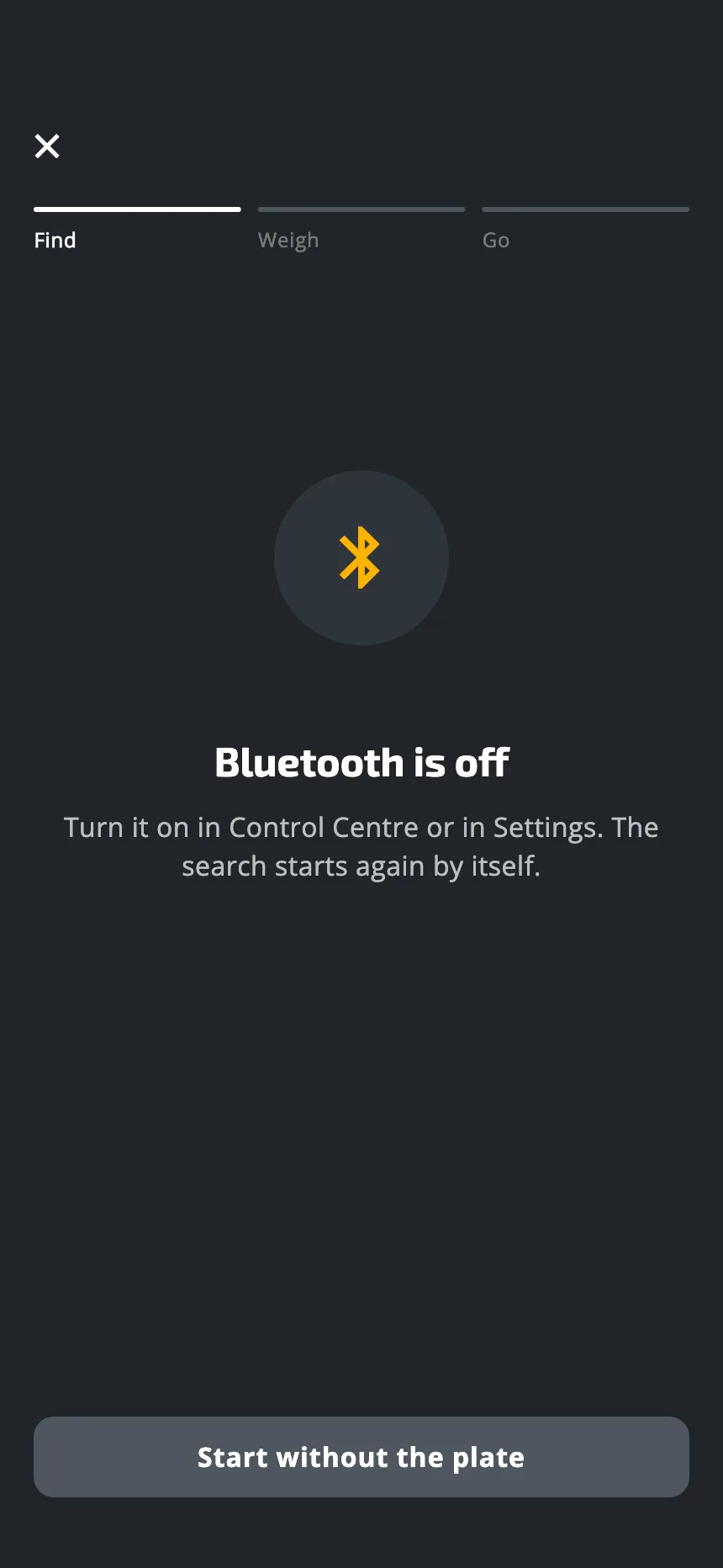
Turn Bluetooth on. On an iPhone, in Control Centre or in Settings. On Android, in Quick Settings, or with the button Turn on Bluetooth on that screen. The search starts again by itself.
If the screen says “Entralpi can’t use Bluetooth”
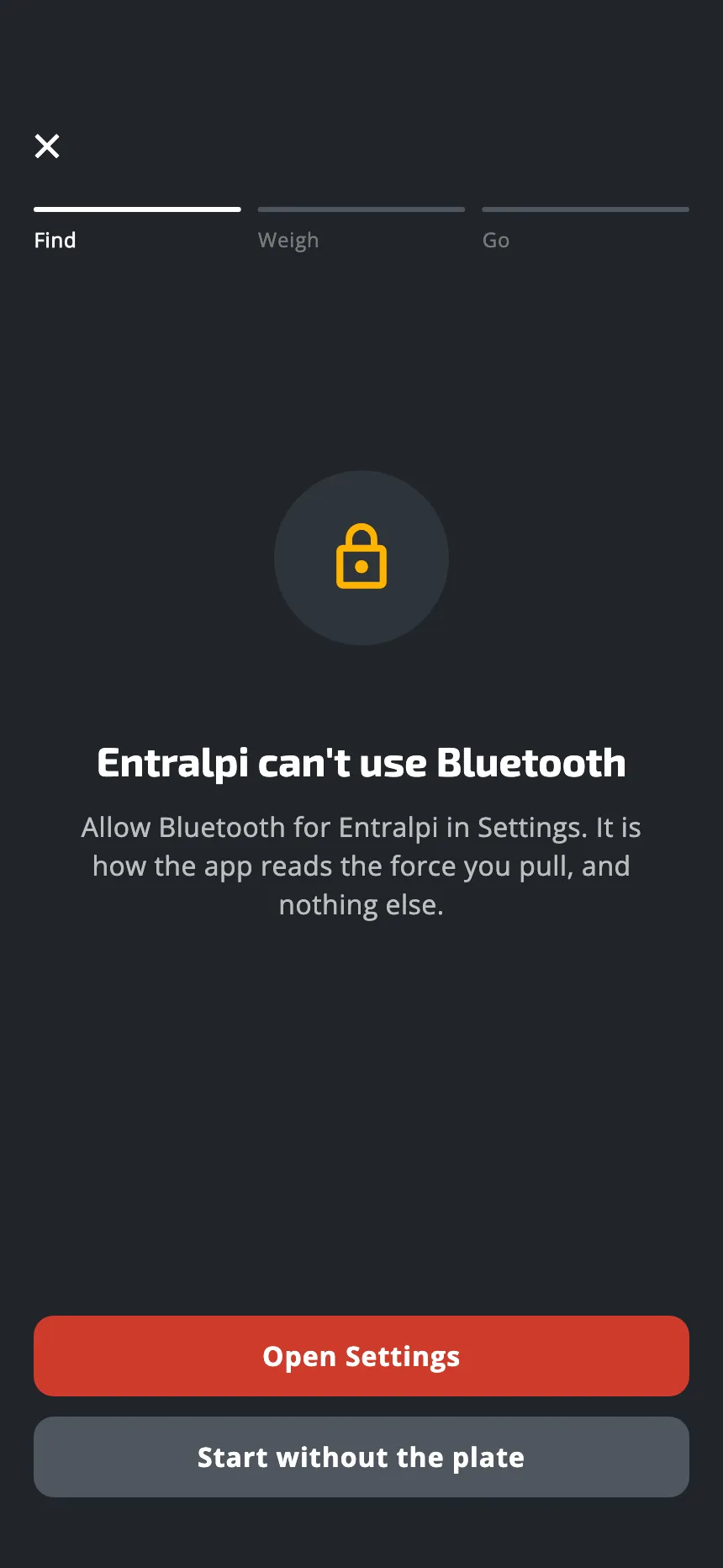
The app was refused the permission. Tap Open Settings and allow it:
- iPhone: Bluetooth.
- Android 12 or later: Nearby devices, and Location. Android puts the search for Bluetooth devices under these two.
- An older Android: Location.
The app uses the permission to find your plate and to read the force you pull. It does not use where you are.
Train anyway
Start without the plate starts the session without the plate. The app keeps the time; no force is measured. If the plate wakes up later, that session does not take it: connect at the start of the next one.
This button is not offered during the first pull of the welcome setup, which is measured on the plate.
Still not connecting?
Write to us with your phone’s model and what the screen says.
Was this helpful?
Thank you. It tells us which articles to improve.