Change a plan: move a day, pause, stop
Checked with app version1.0.63· Last updated
Life does not follow a plan. You can move a day, rest, make the plan lighter, pause it or stop it. All of these work without a connection: the change is made on your phone and sent later. Only deleting a plan needs a connection.
Where the choices are
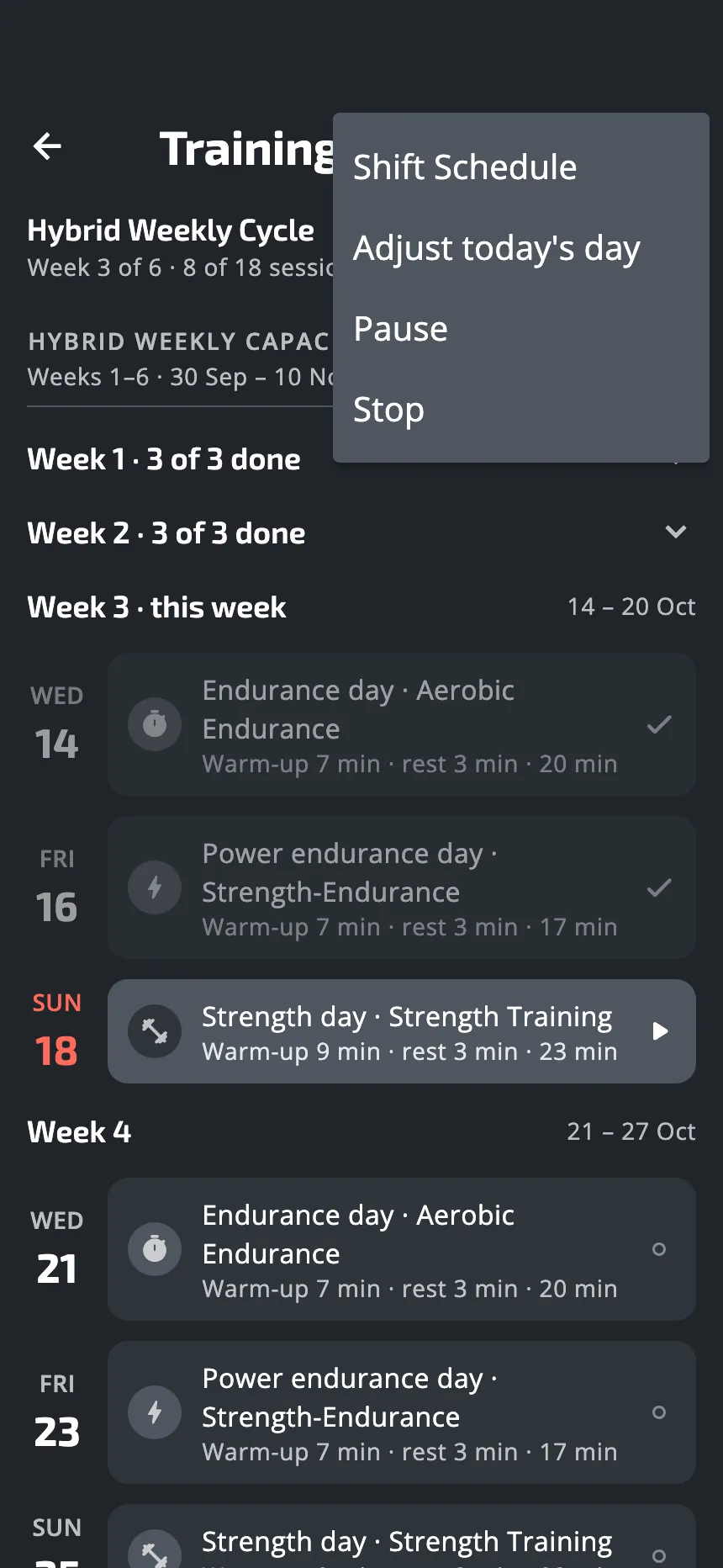
On the Plan tab, tap Plan, at the right of today’s date. The app opens the whole plan, week by week. The menu at the top right (three dots) has four choices:
- Shift Schedule
- Adjust today's day. It is greyed out while the plan is paused, and on a day outside the plan.
- Pause, which becomes Resume while the plan is paused.
- Stop
Most changes on this page happen as soon as you tap. Only three ask you to confirm: stopping a plan, starting it again from its first day, and deleting it. Most cannot be undone with one tap, so read the line under each choice before you tap it.
Change today
Adjust today's day opens Adjust your plan. It shows only the choices that make sense for today:
| Choice | What it does |
|---|---|
| Rest today | Today’s session and all the days after it move one day later. |
| Do the next workout today | When today has no work left (a rest day, or you have finished): the next session comes to today, and the days after it come forward too. |
| Move this day… | You pick a date for today’s session. The days after it move by as much. |
| Add a workout… | Adds a workout from the library to today, after the others. If today still has a workout to do, a rest comes first. |
| Skip this day | Today’s workouts are marked skipped. The plan keeps its dates. |
| Remove this day | Takes today out of the plan. It becomes a rest day. |
| Too hard? | Makes the rest of the plan easier. See below. |
Change another day
In the whole plan, press a day and hold. This works on a day that still has work to do, a missed day too. The choices act on the first workout of that day that is not done:
- Reschedule: pick another date for it. The app then asks if only this session moves, or if the rest of the plan moves by as much.
- Swap Workout: put another workout in its place. Not on a day that has passed.
- Skip Session: opens three choices. Move the session to today, pick another day for it, or skip it. On a test day you can also choose Skip the whole test. A skipped session stays on your plan, marked skipped.
Push the whole plan back
Shift Schedule moves every session still to do, from today on, later by the number of days you choose: from 1 to 30. Use it when you know how many days you lose, for example a week of travel.
The plan is too hard
Too hard? opens Ease the plan. It changes only the days still to come.
- Lighter workouts: each day to come does one round less of a workout it repeats. A day with a test stays as it is. You can do it again to take off one more round. If the plan has no repeated rounds, nothing changes.
- More rest: one more rest day is put between your workout days. The plan ends later. You can do it again for more rest.
- Back to normal: brings back the rounds that Lighter workouts took out, on the days still to come. It shows only after Lighter workouts. It does not undo More rest.
Pause the plan
Pause pauses the plan at once. Use it when you do not know when you will be back: a trip, a cold.
- While the plan is paused, the Plan tab shows Training plan is paused. There is no session to start, no missed day and no reminder.
- Tap Resume when you are back. Every session from the day you paused moves later by the number of days the pause lasted. A day you had already missed before the pause stays missed.
Stop the plan
Stop asks you to confirm, then the Plan tab shows the library again. The sessions you did stay in your history.
The sessions to come are kept aside: if you did at least one session of the plan, the Plan tab lists it under Paused Plans, above the library. A plan you stopped before doing any session is not listed. Tap a plan of that list:
- Resume plan: you pick up where you left off. The sessions still to do are set again from today.
- Restart plan from Day 1: the app asks you to confirm. Then the plan’s progress is erased and the plan starts again from its first day, today. The sessions you did stay in Activity History.
- Delete plan data: the plan’s progress is erased. The sessions you did stay in Activity History, and you can start the plan again from the library.
Stopping is also how you change plans: the library shows only while you follow no plan.
Delete a plan built for you
A plan that was built for you is marked Yours in the library. Open it from the library, tap the bin icon, and confirm. The plan goes from your phone and from your account, so this needs a connection. The sessions you did stay in your history.
An account keeps 10 plans of its own. When it is full, a new plan still works on your phone, but it is not saved to your account until you delete one.
Pause or stop?
- Pause when you will come back to the same plan and want it to wait for you.
- Push the plan back when you know the number of days.
- Stop when you want another plan, or no plan for a while.
Was this helpful?
Thank you. It tells us which articles to improve.