Follow a training plan
Checked with app version1.0.63· Last updated
A plan tells you what to do each day, for several weeks. You follow one plan at a time, from the Plan tab.
1. Choose a plan
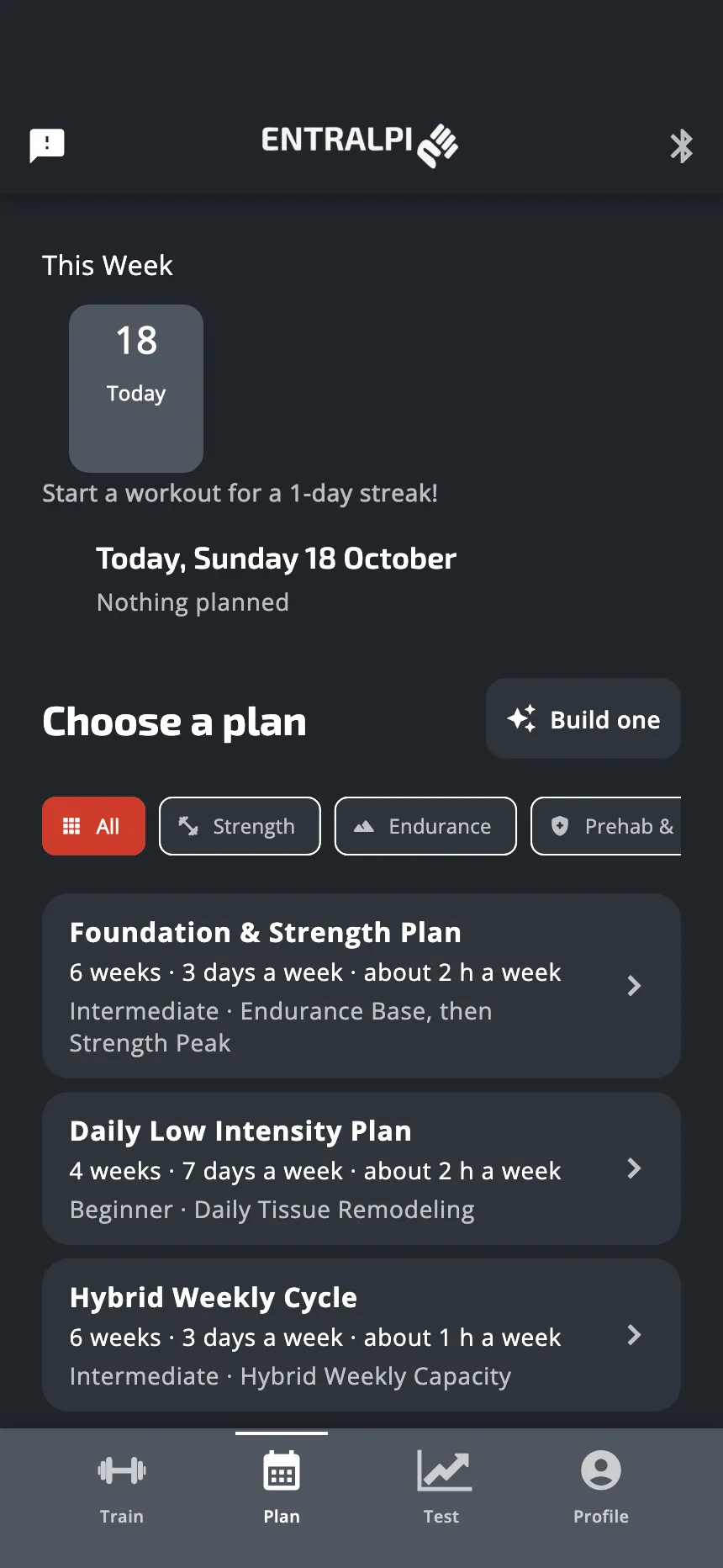
With no plan, the Plan tab shows a library under Choose a plan. Each card says the level of the plan, how many weeks it lasts, how many days a week and how much time a week. The buttons above the cards filter the plans by kind. The app may already show only the plans for your goal: tap Show all to see every plan.
Tap a card to open the plan. Its page shows the phases of the plan and its first week. Tap a day of that week to see what it holds.
2. Or have one built for you
Next to Choose a plan, tap Build one. The app shows the answers it builds the plan from:
- Goal for this plan
- Grade
- Climbing for
- Your boards, if you have a hangboard or a plate
- Injuries
- Start: the day the plan starts. Choose it here.
Under them, a slider sets Training days a week, from 1 to 7.
Tap a line to change its answer. Your answers are saved to your profile. When none is missing, tap Show my plan. Building the plan needs a connection and takes a few seconds.
You then see the plan. Nothing is started yet: Change my answers takes you back to the answers.
If you asked for a plan when you first opened the app and did not start it, the Plan tab keeps it for you under Suggested for you. If you tap Not now, it comes back the next time you open the app.
3. Start the plan
On the plan’s page, tap Start this plan.
- A plan of the library starts today. To start on another day, tap Change date first.
- A plan built for you starts on the day you chose with your answers.
You follow one plan at a time. While a plan runs, the Plan tab does not show the library. To choose another plan, stop the one you follow first: see Change a plan.
The first time, the app may say why it would like to send notifications, then your phone asks. They are used for two things: a reminder on the morning of a training day, and a signal when a rest between two workouts is over.
4. Do today’s session
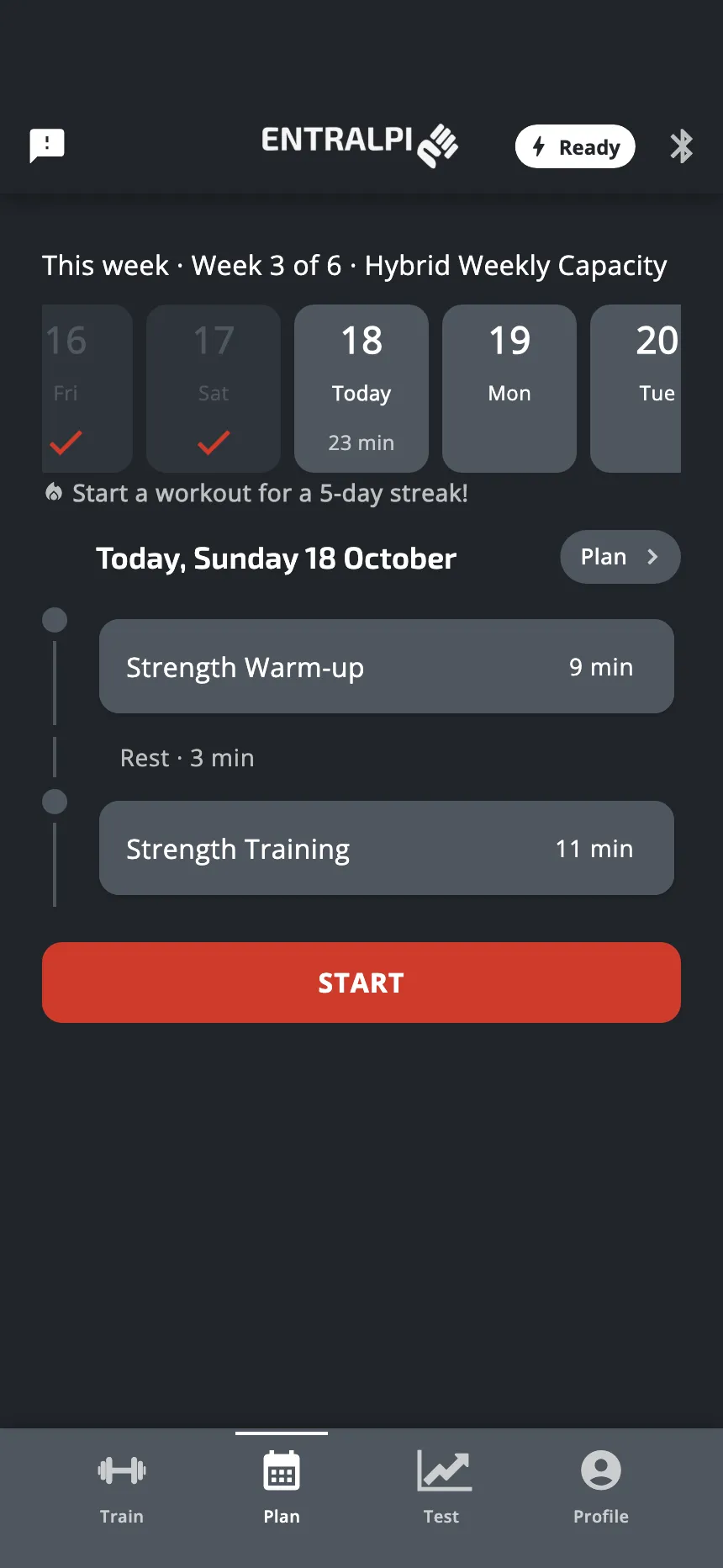
While a plan runs, the Plan tab shows:
- The strip of days, one tile for each day. It scrolls back to your first session and on to the last day of the plan. The line above it names the week of the plan. A check is a day with a session done. A number of minutes is a session still to do (a ring means the time is not known). A dash is a missed day. Tap a day to see its workouts under the strip.
- Today, with its workouts in order and the rests between them.
- Plan, the grey button at the right of the date. It opens the whole plan: see Change a plan.
- Start, under today’s workouts, while today has work still to do.
Tap Start. The app opens the first workout that is not done, and looks for your plate.
When a workout ends and another one follows the same day, tap the arrow on the end screen. The app opens the rest and counts it down. After a few seconds the rest screen closes into a small timer at the top of the screen, and the count goes on. Tap that timer to open the rest again.
The next workout never starts by itself: tap Start now when you are ready, or Start once the rest is over. While the rest counts, Add 1 minute gives you more.
To stop for the day part way, tap the X on the rest screen, then Leave. The workouts you did are saved. The others stay open for today: come back from the Plan tab.
A day of a plan can be a test. It runs like any test: see Take a test.
5. A rest day
On a day with nothing planned, the Plan tab says Nothing planned. If you want to train anyway, a grey button offers to do the next session today. The days after it then come forward by as many days.
The same button shows when you have finished today’s work and want to do more.
If you miss a day
A day you did not do stays owed. On today’s view, at the right of the streak line, the app counts the days you missed. Tap that count. The app shows the latest missed day, with two choices:
- Do it today. The missed session comes to today.
- If today had its own session and you have not started it, that session and the days after it move one day later.
- If today is a rest day, nothing else moves.
- If you have already started today’s session, nothing moves: the missed session is added after today’s.
- Skip it. The session is marked skipped. The plan keeps its dates.
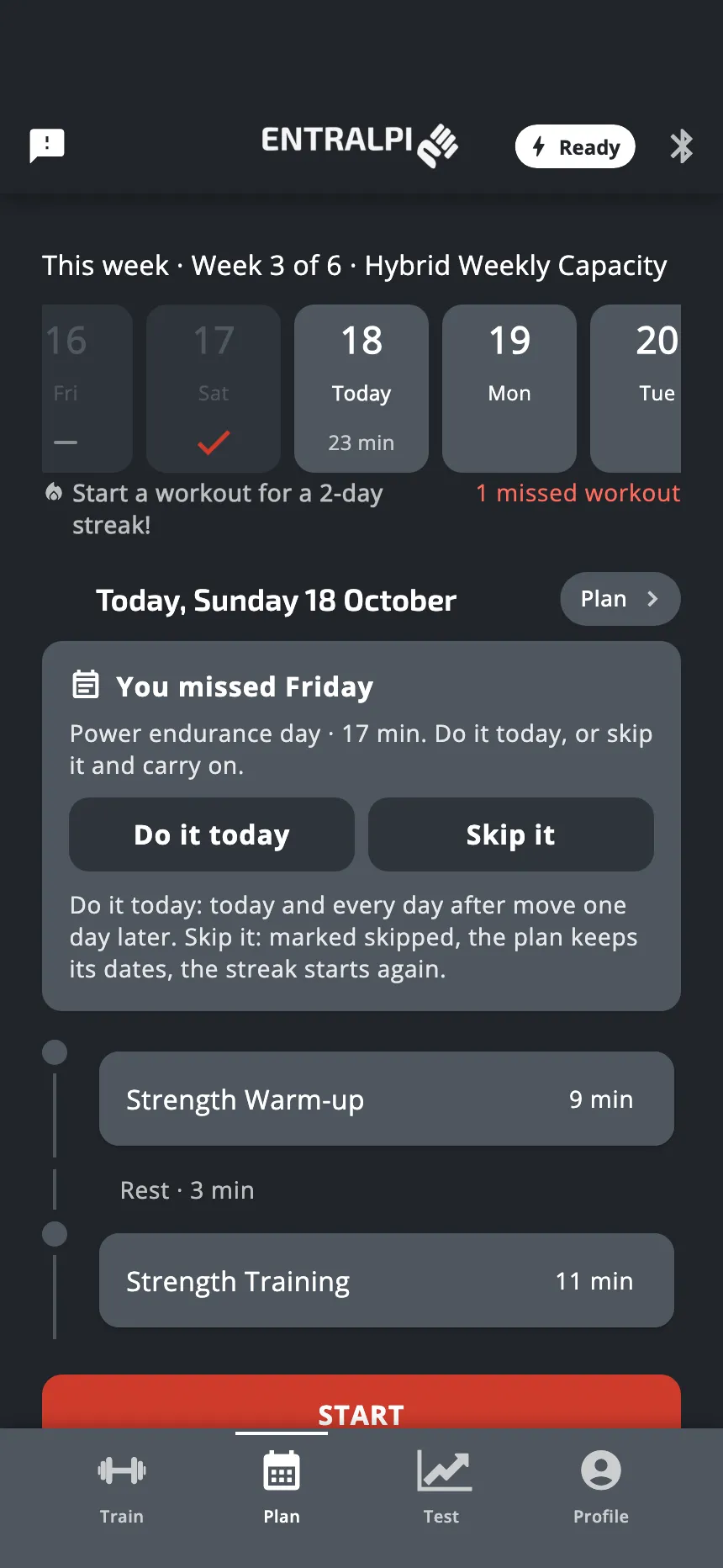
If you missed several days, the app shows the latest one first. After your choice, tap the count again for the next one.
A plan ends only when every day is done or skipped. Missed days that you left as they are keep the plan open.
Reminders
Reminders are in Profile, then Settings, under Notifications:
- Enable notifications turns them on or off. They are on at the start.
- Notification time is the time of the reminder on a training day. It is 8:00 at the start.
- Nudge me after a missed day sends one more message the day after a missed session. It is off at the start. It is sent only for a session you left open yesterday.
The last two show only while notifications are on.
There is no reminder while a plan is paused.
Without a connection
- Your plan is saved on your phone. Today’s session works, and your results are sent later.
- You can start a plan that is already in the library on your phone.
- You cannot have a new plan built. And you can usually not delete one of your own plans: it must be deleted from your account too.
When the plan is finished
The Plan tab shows Plan finished, with the number of training days you did. It is a good moment to take the tests again and see what changed. Then tap Choose my next plan: the Plan tab shows the library again. The finished plan is listed above it, under Paused Plans, and you can start it again from there.
To move a day, rest more, pause or stop, see Change a plan.
Was this helpful?
Thank you. It tells us which articles to improve.