Build your own workout
Checked with app version1.0.63· Last updated
The app has ready-made workouts. You can also build your own: your hangs, your rests, your loads.
1. Tap the + on the Train tab
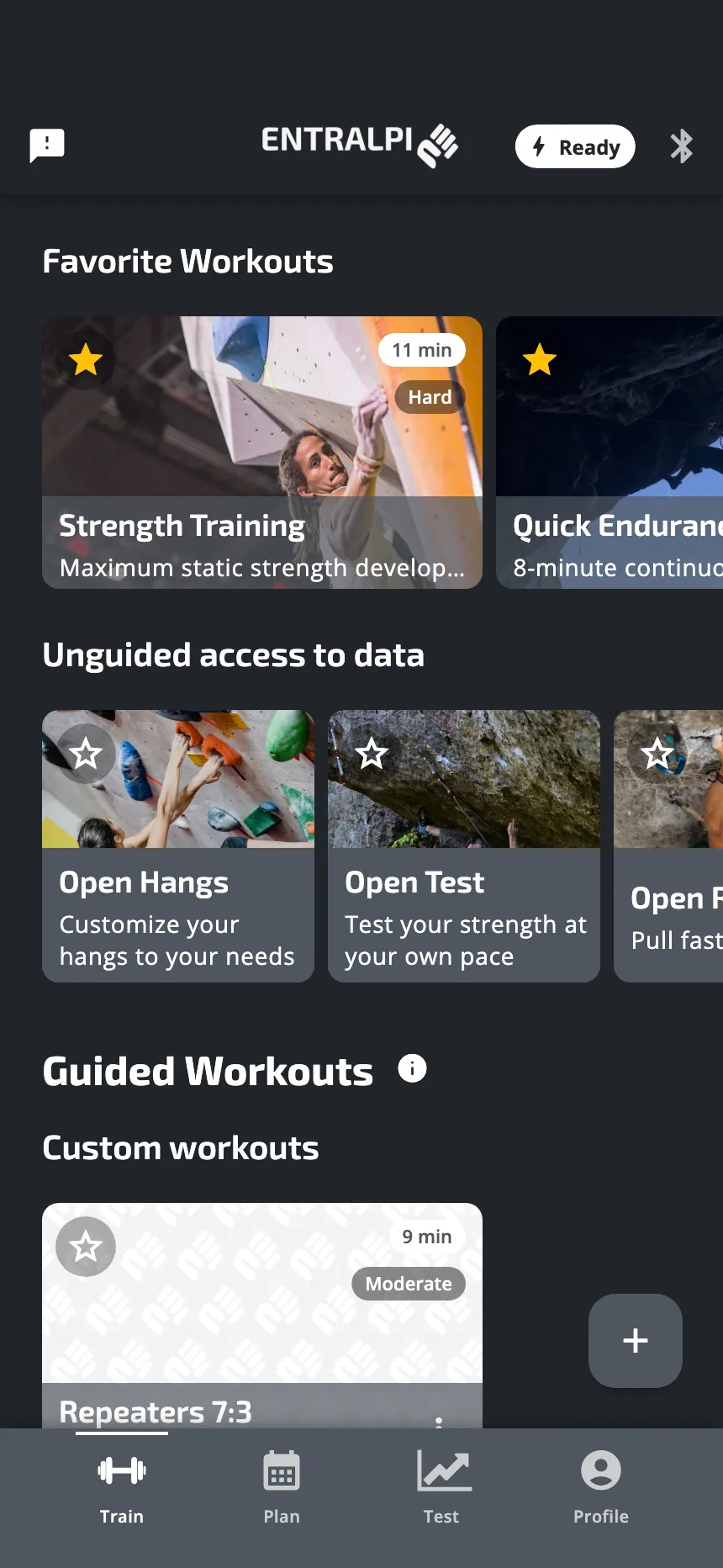
The + button is at the bottom right of the Train tab. It opens Create Workout.
2. Name it
The app gives your workout a title and a description. Change them to something you will recognise. A picture at the top is optional.
A new workout is not empty. It starts with one set of repeated hangs and rests. Change it, or add to it.
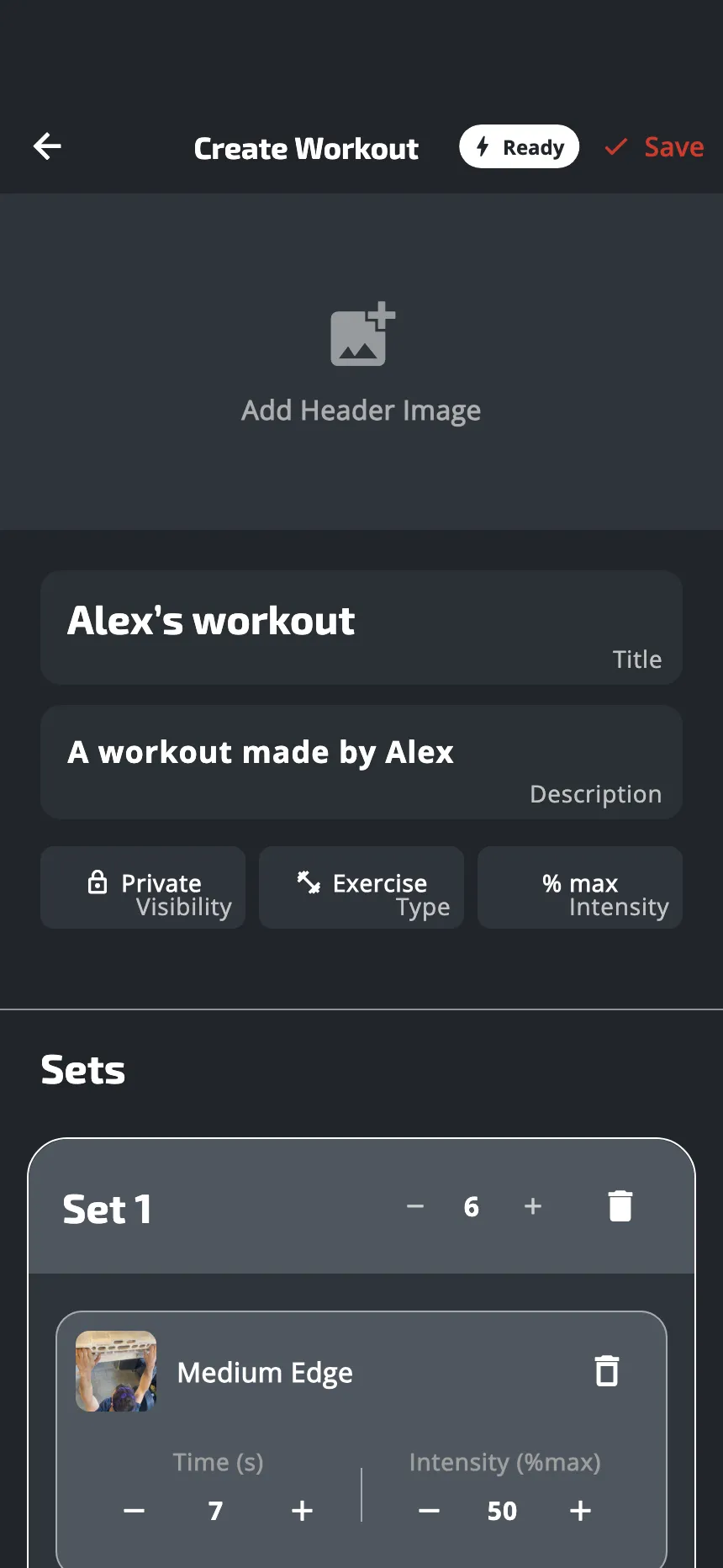
3. Set the three buttons
- Visibility: Private or Public. A new workout is private.
- Type: Exercise or Hangboard. With Hangboard, the app shows a board: tap its picture to choose another one. Then, on each hang, you tap the holds (two at most) and the fingers on the drawing.
- Intensity: how the load of each hang is written. A new workout starts on % max. Each tap goes to the next one:
- kg: a fixed load, always in kilograms.
- % bw: a share of your body weight.
- % max: a share of your max strength.
One workout uses one way of writing the load. When you change it, the app converts the loads you already typed.
% max needs your max strength. It is the value for one hand, in Profile, then Settings, under Physical Profile. For an exercise with both hands, 100% is twice that value. A hang on one finger or a few fingers is kept to a safe share of that finger’s own max: if you type more, the session lowers it. The workout page shows what each hang asks, for example “60% of your pinky · 6.2 kg”. If the field is empty, the app uses the weight the plate measures before the session instead. So set your max strength before you build a workout in % max. See The max strength test.
4. Build the sets
A workout is a list of sets. A set is a list of steps: hangs and rests.
For each hang:
- Tap the name of the exercise and choose another one: the hold, and the hand. You can search the list. A hang with no exercise reads Select Exercise.
- Set the time. Type seconds (“45”) or minutes and seconds (“1:30”), or use − and +.
- Set the load. − and + change it step by step. You can also type it: for 50%, type 50.
Then:
- Add exercise adds another hang to the set, like the last one, with a short rest before it.
- The number at the top of a set is how many times the set is done. Use it for repeaters: one hang and one rest, done six times. Above 1, the app adds a short rest at the end of the set.
- Add Set adds a copy of the last set. If there was no rest after the last set, the app puts a rest between the two. Change its time on the rest’s card.
- The bin removes a hang, a rest or a whole set. The last step of a set cannot be removed: remove the set.
5. Save
Tap Save at the top. Every set needs at least one hang, and the workout needs a title.
Your workout is saved on your phone, then sent to your account. If it could not be sent, for example without a connection, the app says it is saved on this phone and sends it again later.
It is now on the Train tab, under Custom workouts. Tap it, then Start, like any workout.
Your workout shows its level
On the Train tab and on the workout’s page, a small word says how hard it is: Easy, Light, Moderate, Hard or Max. On the page, a line says “up to 60% of each finger’s max”. The word is there only if every load is in % max. A workout in kg or % bw has none. Each hang’s line says what it asks, for example “60% of your pinky · 6.2 kg”.
Your own exercise
If the exercise you want is not in the list, tap Create a custom exercise at the bottom of the list. Give it a name. You can also say which hand it uses: Left, Right or Both. A picture and a description are optional. The switch Share with Community makes the exercise available to all Entralpi users. It is off at the start. Two exercises cannot have the same name.
To change one of your exercises later, tap the pencil next to it in the list.
Careful when you delete one of your exercises. To delete it, tap its pencil, then Delete Exercise. Every workout of yours that uses it is deleted with it. The app warns you before.
Change, copy or delete a workout
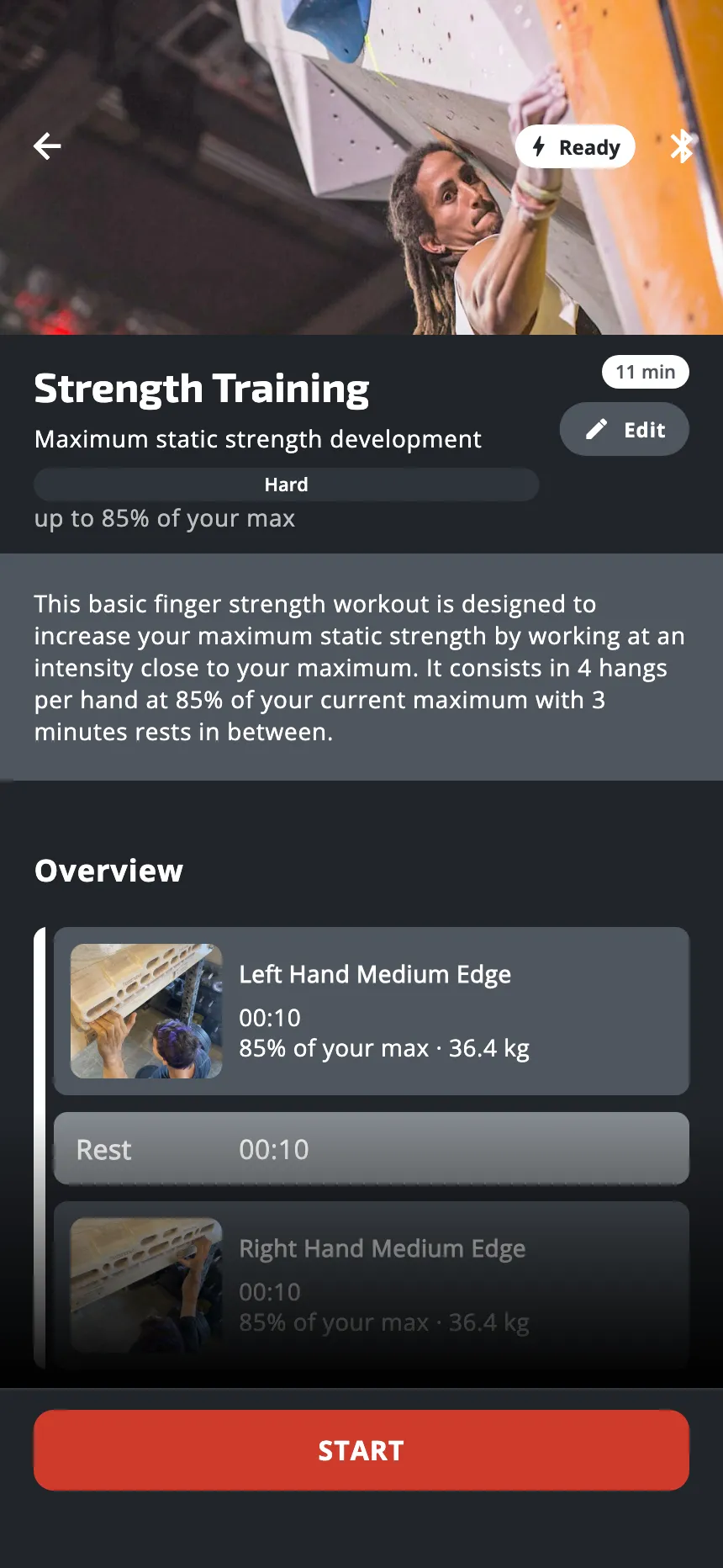
Open the workout and tap Edit.
- One of your workouts. When you save, the app asks: Save Changes, which replaces the workout, or Save as Copy, which makes a new one and keeps the first.
- A workout that is not yours, for example one of the app’s. You cannot change it, but you can copy it: after Edit, the button at the top reads Create copy. It saves a copy that is yours, and the original stays as it is. It is the quickest way to start: copy a workout close to what you want, then change it.
- Delete. On the page of one of your workouts, tap the bin. The app asks you to confirm. This cannot be undone.
When you save one of your workouts after a change, the app shows these two choices:
On the Train tab, each card under Custom workouts also has three dots, with Edit and Delete.
Sharing
There are two ways, and they are separate.
- A link. A workout you own has a share icon on its page. It makes a link: anyone who has the link can open the workout and save a copy. See Share a workout.
- Public. Other users of the app then see your workout in their own list. To make a workout public, every exercise of your own in it must be shared too: the app tells you if one is not. Switch on Share with Community for each one.
Good to know
- Your workouts are kept in your account. If you log out, the app first sends what it can, then removes your workouts and your exercises from the phone. They come back when you log in again. What could not be sent is lost: the app warns you before.
- If you use the app without an account and then create one, your workouts go into it.
- “kg” in the editor means kilograms, even if the rest of the app shows lbs or N.
Was this helpful?
Thank you. It tells us which articles to improve.