Set up your hangboard and your holds
Checked with app version1.0.63· Last updated
The app can draw your hangboard and show which edge to use. Tell it once which board you have and which edges you train on. Your tests and your sessions then start from them.
You do not need a hangboard of the list to use the app. See “My board is not in the list” below.
Choose your board and your edges
- Open Profile, then Settings.
- Go down to Hangboard. If you see one line only, with a board and its edges, tap it to open it. (It is open already if you chose Hangboard or Both under Preferences.)
- Tap the name of the board. It opens a list: pick your board. The board shown at the start is only an example. It is not saved until you pick another board or tap an edge. To use the board shown, tap one of its edges.
- On the drawing of the board, tap the edge you use. It is set for both hands.
- If your right hand uses another edge, tap that one too. The first edge is then for your left hand, the second for your right. A button swaps the two hands.
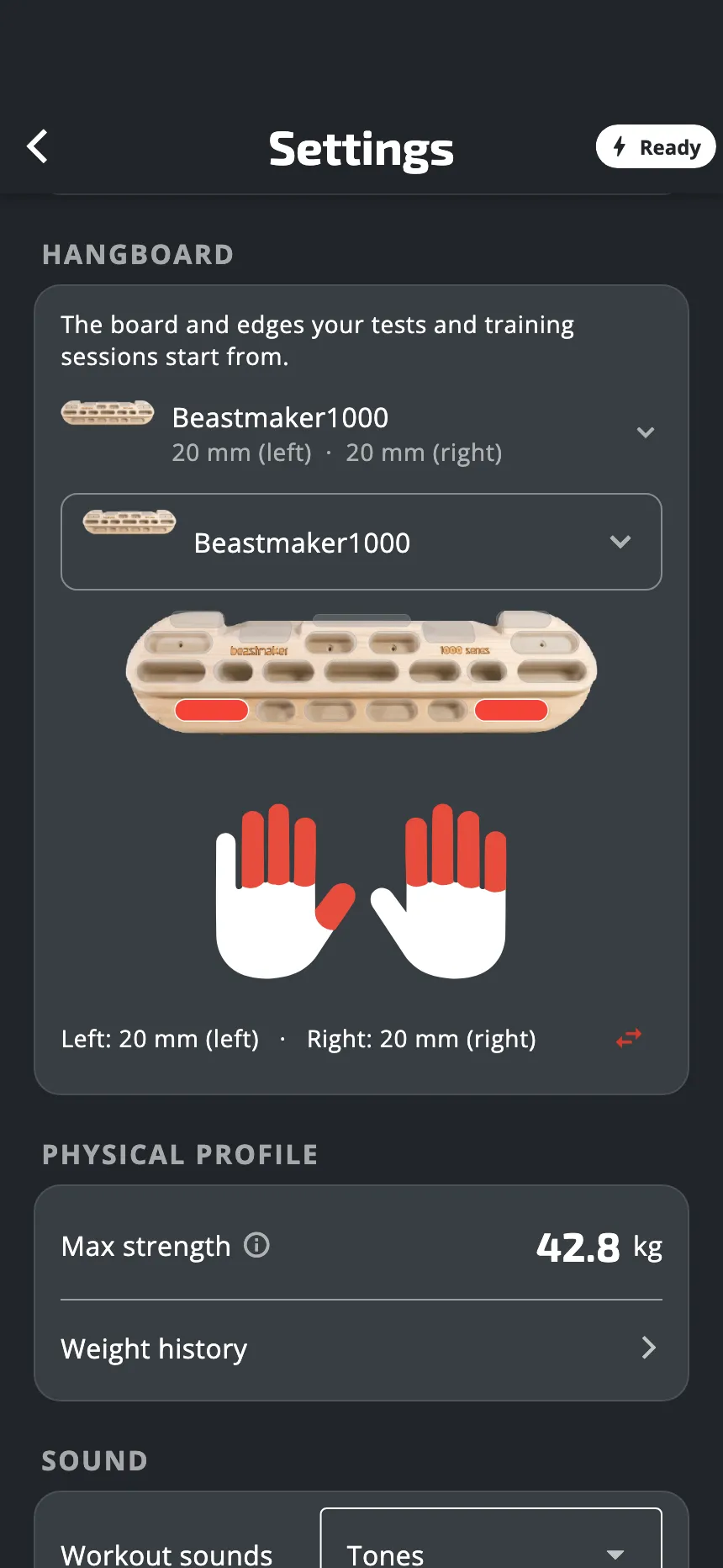
You can choose two edges at most. A third tap drops the first one. Tap a chosen edge again to take it off.
The app saves each change at once.
If you change the board, your edges are cleared: choose them again.
The boards of the list
- Tension Grindstone Pro
- Beastmaker 1000
- Beastmaker 2000
- Rock Prodigy Training Center
- Monsterboard
- Globe
- Lemur
My board is not in the list
You cannot add a board in the app. You can still do everything:
- For tests, use Custom on the screen Configure test, which asks what you test on. Give your setup a name, for example “20 mm wooden edge”. The next tests start on it without asking, and you can show only the results of that setup. See Take a test.
- For workouts, the app shows a photo of each exercise. It is the setting at the start for everyone: you do not need to tell the app your board.
How exercises are drawn
In Settings, under Preferences, Exercise display has three choices:
- Photo: a photo of the grip. It is the choice at the start.
- Hangboard: the drawing of the board, with the edge marked.
- Both: the photo, with a small drawing in its corner.
If an exercise has no drawing for a board, the app shows its photo. If it has no photo, the app shows the drawing.
Where your choice is used
- Tests. A test starts from your saved board and edges, and skips the question. If you never saved an edge, the app asks first. To test on another edge, tap the sliders icon at the top right of the test’s briefing. Careful: the edge you confirm there becomes your saved edge in Settings.
- Workouts. When you open a workout that does not name a board, the app draws your saved board and edges, if you chose Hangboard or Both above.
Why it matters
A force on a deep edge and a force on a small edge are two different things. The app saves your board and your edge with each test result, so you know later what a result was measured on.
Was this helpful?
Thank you. It tells us which articles to improve.