Take a test
Checked with app version1.0.63· Last updated
The app has three tests: Max strength, Endurance and Finger strength. Each one needs your plate and a hold to pull on. This page is what the three have in common. Each test also has its own page:
Before you start
- Put the plate on a hard floor, under the hold you will pull on.
- Warm up. A test asks for your hardest pull.
- Stop at the first pain. A test is never worth an injury.
- Have a connection the first time. The app loads the tests from the internet, then keeps a copy on your phone.
1. Open the Test tab
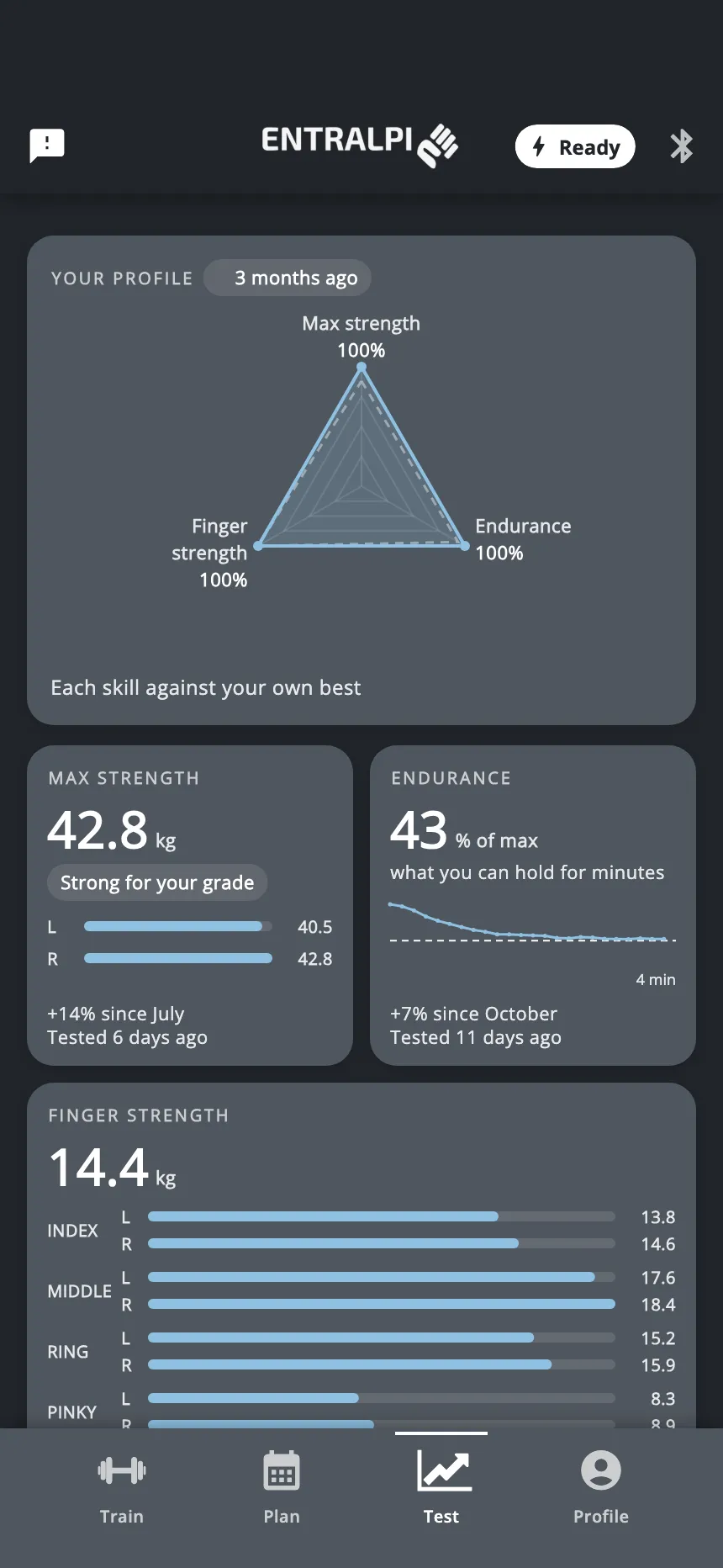
The Test tab has one tile for each test. The picture shows tiles with results. A tile with no result shows a dash, and under it how long the test takes.
There are three ways to start a test:
- Start the test, on a tile with no result yet.
- Test again, on a tile whose last result is more than 28 days old.
- Tap the tile to open its section, then tap Start test at the bottom.
A test can also be a day of your plan. Then you start it from the Plan tab, like any other session.
2. Say which hand (endurance test only)
The endurance test is done one hand at a time. The app asks Which hand would you like to test? Tap Left hand or Right hand. To test the other hand, start the test again afterwards.
The two other tests do not ask: they cover both hands.
3. Choose what you pull on
If no setup is saved yet, or the saved one has no edge for this test, the app opens Configure test. It has two modes.
Hangboard. Choose your hangboard in the list, then tap the edge you test on, on the drawing of the board.
- A test with one hand needs one edge.
- A test with both hands needs two: tap the edge for your left hand first, then the edge for your right hand. The button stays grey until you have two.
If you tap the wrong edge, tap it again to remove it. Once you have two edges, the swap button puts the left edge on the right hand and the other way round.
You can also give the setup a name. It is optional.
Custom. For anything that is not a hangboard of the list: a wooden rung, a lifting block, a hold of your wall. Give the setup a name, and use the same name next time. In each test’s section, you can then show only the results of that setup.
Then tap Confirm setup. The app remembers your choice. Next time it skips this step and goes straight to the briefing. With a hangboard, the board and the edges you confirm also become your saved hangboard and edges in Settings.
Test on the same hold every time. A result on a 20 mm edge and a result on a 15 mm edge are two different things. The edge is saved with each result, but the tiles of the Test tab do not separate holds: they show your latest result, whatever the hold.
4. Read the briefing
Test briefing says what the test is. Under Overview, you see the steps of the test: each hold, and the rests between them. A step that repeats shows an X and a number.
- To test on another hold, tap the sliders icon at the top right. It opens the choice of step 3 again.
- Warm up first runs a short warm-up on the timer, without the plate, then brings you back to this briefing. The app does not show it if you told it that pain stops you from climbing.
Tap Start test.
5. Stand on the plate
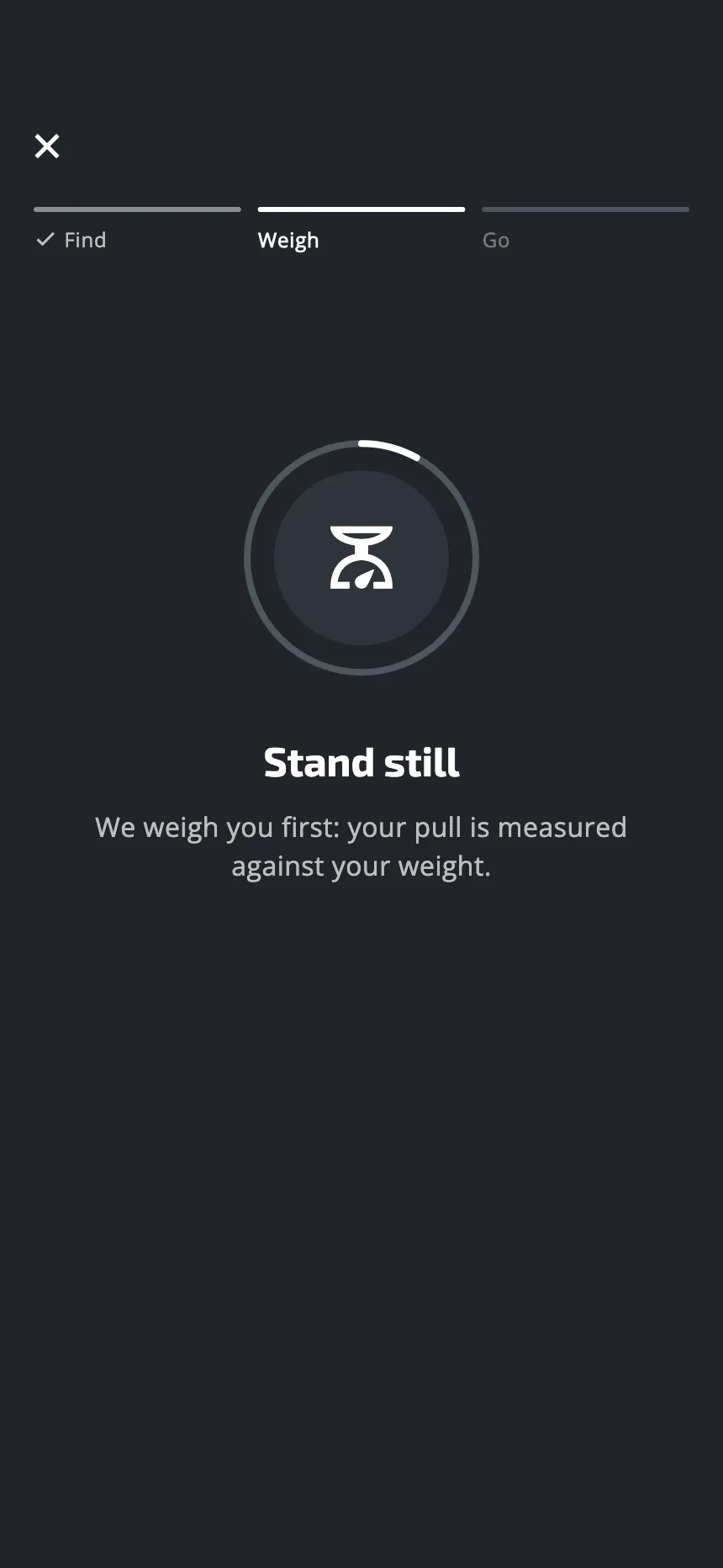
The app looks for your plate, then weighs you. Stand still on the plate for a moment. The test then opens by itself. If this step does not work, see The plate does not connect or The weight or the force looks wrong.
6. Pull
A pull looks like this. The picture is from a normal workout. On top, the hold: a photo, or a drawing of your board. In the middle, your force, live. At the bottom, the timer.
The app waits for your pull: a pull begins when you pull. There is no time limit, and no way to skip a pull. If the plate loses its connection during a pull, that pull starts again.
At the end of each pull, the app shows the highest force of that pull for a moment. If you tested before on the same board, the same edge and the same fingers, it also shows the difference with your best pull.
7. Read your results
After the last pull, the app shows one screen: the results of the test on top, the summary of the session under them. Each test has its own results: see the three pages above.
Later, you find them in two places:
- The Test tab. The tile shows your latest result. Tap the tile to open its section, with the curves and the details. At the top of the section, a date opens the list of your older results. If you named your setups, or if some results come from a plan, you can also filter by setup or by plan.
- Activity History, in the Profile tab. It lists every session, tests included.
For what the numbers mean, see What each test measures.
Leaving a test before the end
If you leave, the app asks Do you really want to leave this test? If you answer Yes, the session is not saved. Half a test would give a false result. Start it again when you are ready.
One thing to know: in the max strength test and the finger strength test, the pulls you had finished before you left may still show in the Test tab.
Testing without the plate
The screen that looks for your plate also offers Start without the plate. The test then runs on the timer only. It measures no force, so the test has no real result. If the test is a day of your plan, the plan still counts it as done. The session still shows in Activity History. Use it only to try the steps of a test.
Good to know
- You cannot delete a test result in the app. To replace a result, take the test again: the Test tab shows the latest one.
- The Test tab reminds you after 28 days: the tile then shows Test again.
- Tests couldn’t be loaded. Try again once you’re online. This message means the app could not load the tests and has no copy yet. Connect to the internet and try again.
Was this helpful?
Thank you. It tells us which articles to improve.